Imagine driving your Tesla down the highway when suddenly your entire touchscreen goes black.
No speedometer. No navigation. No battery percentage. No vehicle visualization.
Just a completely black screen.
If you’ve ever experienced this, you know how unsettling it can be — especially in a Tesla Model 3 or Model Y, where so many vehicle functions are displayed on the center touchscreen.
Your first thought might be:
“Did my Tesla just shut down while I was driving?”
The good news is that a black Tesla touchscreen does not automatically mean the vehicle has lost propulsion, steering, or braking.
Sometimes, the problem is limited to the display or infotainment system.
However, a black screen while driving is still a serious situation because you may lose access to important vehicle information and controls.
In this guide, we’ll explain why your Tesla screen might suddenly go black, what to do safely, how to restart the touchscreen, and how to recognize when the problem requires Tesla Service.
We’ll also cover what works during a touchscreen outage, what to do if the display won’t turn back on, and how to avoid making the situation worse.
IMPORTANT SAFETY NOTE: If your Tesla touchscreen goes black while driving, concentrate on controlling the vehicle and finding a safe place to stop. Do not attempt to restart the touchscreen while driving. Tesla specifically instructs owners to restart the touchscreen only when the vehicle is stopped and in Park.
Quick Answer: What Should You Do If Your Tesla Screen Goes Black?
If your Tesla touchscreen suddenly turns black while driving:
- Stay focused on the road. Avoid sudden steering or braking unless necessary.
- Assess vehicle control. If steering, braking, or propulsion behaves abnormally, treat it as a vehicle emergency.
- Find a safe place to stop. Pull into a parking lot or another appropriate location.
- Shift into Park. Only troubleshoot after the vehicle is securely parked.
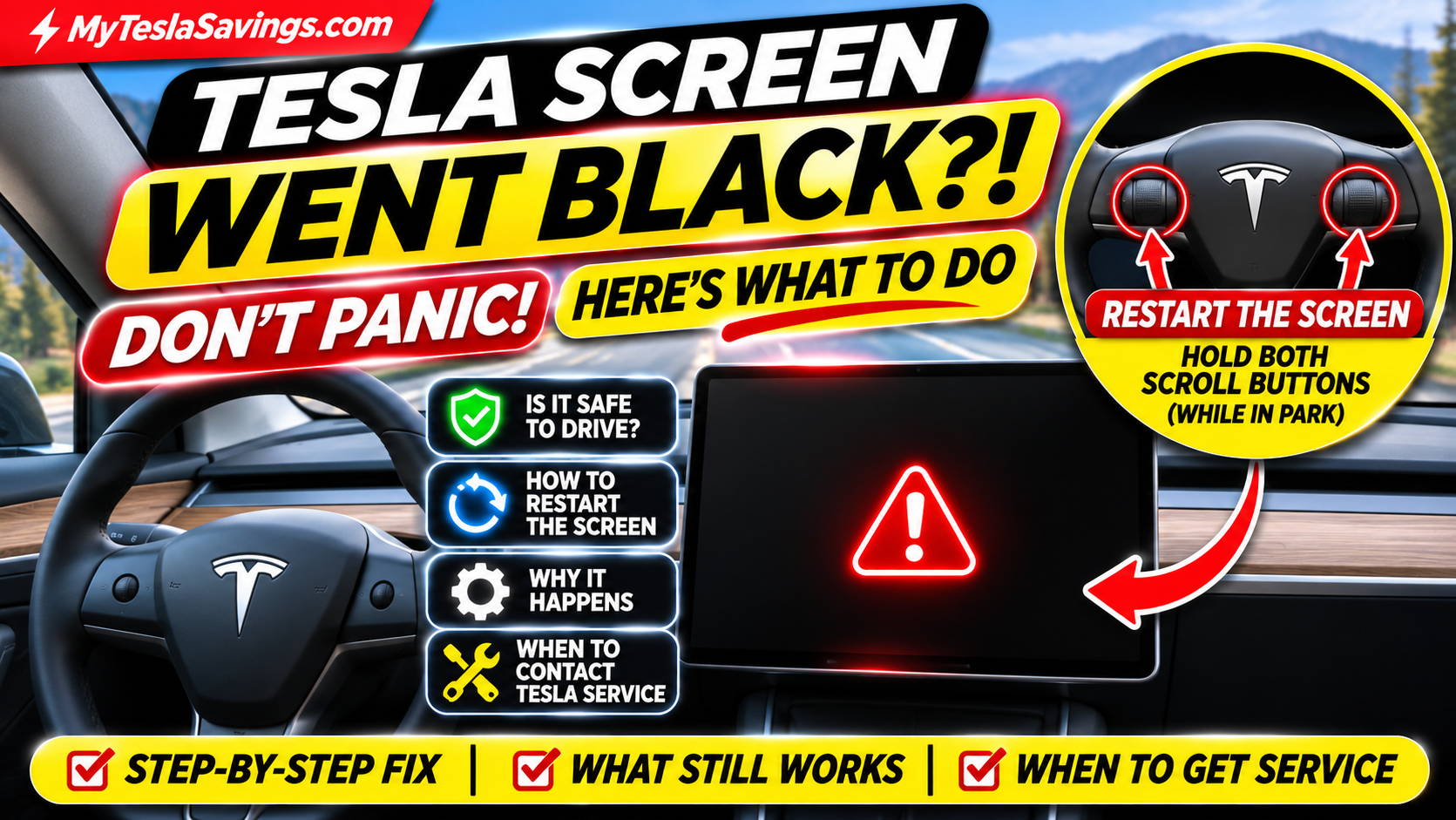
- Restart the touchscreen. On supported Tesla models, hold both steering-wheel scroll buttons until the screen begins restarting.
- Wait for the display. Tesla says the restart typically takes approximately 30 seconds.
- Contact Tesla Service if necessary. If the screen remains black, the problem returns, or other systems behave abnormally, request professional assistance.
Never continue driving simply because the vehicle still moves. A missing speed display, vehicle warnings, or essential controls can make continued driving unsafe.
1. Why Does a Tesla Screen Suddenly Go Black?
There isn’t one single explanation for every Tesla touchscreen failure.
A black screen can result from several different issues, ranging from temporary software problems to hardware or electrical faults.
Possible Cause #1: Temporary Software Freeze
Your Tesla touchscreen runs software responsible for displaying vehicle information and operating many cabin features.
Like other computerized systems, it can occasionally become unresponsive.
A temporary software freeze may cause:
- A completely black display.
- A frozen vehicle visualization.
- An unresponsive touchscreen.
- Missing interface elements.
- A display that restarts unexpectedly.
In some cases, restarting the touchscreen may restore normal operation.
Possible Cause #2: Infotainment System Restart
A touchscreen may temporarily go dark if its underlying computer or display software restarts.
This does not necessarily mean the vehicle’s entire electrical system has shut down.
However, owners cannot reliably determine the cause simply by looking at a black screen.
Possible Cause #3: Software-Related Issue
If a black-screen problem begins after a software update, there may be a connection worth investigating.
That does not prove the update caused the issue.
Record the software version and when the problem occurred so Tesla Service can evaluate it.
Possible Cause #4: Display or Computer Hardware Fault
A malfunctioning display, computer component, wiring connection, or related hardware may prevent the touchscreen from operating correctly.
Hardware problems may require diagnosis and repair.
Possible Cause #5: Electrical or Power-Related Problem
Certain electrical faults can affect vehicle electronics.
If a black screen occurs alongside unusual warnings, multiple system failures, or problems controlling the vehicle, do not assume it is merely an infotainment issue.
Bottom line: A single successful reboot does not prove what caused the problem, and repeated black screens deserve investigation.
2. Can You Still Drive a Tesla When the Screen Goes Black?
This is probably the biggest question Tesla owners have.
A black touchscreen does not necessarily mean the vehicle has lost the ability to accelerate, steer, or brake.
Tesla’s touchscreen restart procedure is separate from powering off the entire vehicle.
But there is a major difference between a touchscreen restart and an unexpected failure while driving.
With a black display, you may lose access to:
- Your speed readout on models that display speed centrally.
- Battery percentage and estimated range.
- Navigation.
- Certain climate controls.
- Vehicle status information.
- On-screen safety warnings.
- Camera views.
- Some vehicle settings and controls.
Other functions may continue operating, but you should not assume every vehicle system is unaffected.
What About the Model 3 and Model Y?
Most Model 3 and Model Y configurations rely heavily on the center touchscreen.
That makes a display outage particularly disruptive.
Even if the vehicle appears to respond normally, missing speed information and safety warnings are reasons to stop somewhere safe.
What About Model S and Model X?
Many Model S and Model X configurations have a separate instrument display.
Depending on the vehicle, a center touchscreen problem may not remove every driver-facing display.
However, the appropriate response is still to stop safely and investigate.
Our recommendation: Do not treat a black touchscreen as permission to continue your trip without resolving the problem.
3. How to Restart a Tesla Touchscreen That Went Black
Tesla provides an official touchscreen restart procedure for unresponsive displays.
On supported Model 3 and Model Y vehicles, the process uses the two scroll buttons on the steering wheel.
Step-by-Step Tesla Screen Restart
Step 1: Stop the vehicle safely.
Find a safe parking location away from moving traffic.
Step 2: Shift into Park.
Tesla instructs owners to perform the restart only when the vehicle is stopped and in Park.
Step 3: Locate the steering-wheel scroll buttons.
Find the left and right scroll buttons on your Tesla steering wheel.
Step 4: Press and hold both scroll buttons simultaneously.
Continue holding until the touchscreen turns black or begins its restart sequence.
If the display was already black, follow the same procedure.
Step 5: Release the buttons and wait.
Tesla indicates that the touchscreen generally takes approximately 30 seconds to restart.
The Tesla logo may appear during the process.
Step 6: Confirm the screen is functioning normally.
Check that the interface responds, important information is displayed, and no new warnings appear.
Does This Restart the Entire Tesla?
No.
Tesla explains that holding the scroll buttons restarts the touchscreen, not the entire vehicle.
It is not the same as turning the vehicle off and back on.
Can You Do This While Driving?
No. Tesla specifically warns against restarting the touchscreen while the vehicle is moving.
During the restart, the display cannot show vehicle status information, safety warnings, or camera views.
Always stop and shift into Park first.
Official instructions: Tesla Model 3 Touchscreen Restart
4. What If Your Tesla Screen Is Still Black After Restarting?
If the scroll-button restart doesn’t resolve the issue, avoid repeatedly attempting random button combinations.
Instead, work through the following checks.
Check #1: Give the Restart Time to Complete
Tesla indicates that the screen normally restarts in approximately 30 seconds.
If it remains unresponsive after a few minutes, further troubleshooting may be needed.
Check #2: Check for Other Vehicle Problems
Ask yourself:
- Is the touchscreen the only system that appears affected?
- Are there any unusual sounds or electrical symptoms?
- Did the vehicle display warnings before the screen went black?
- Are there problems with other vehicle functions?
If several systems are affected, professional diagnosis becomes more important.
Check #3: Consider a Vehicle Power Cycle
Tesla documents a separate power-cycling procedure for certain unusual vehicle behaviors.
However, this procedure requires access to a working touchscreen.
On supported vehicles, Tesla’s documented steps generally involve:
- Shift into Park.
- Select Controls → Safety → Power Off.
- Wait at least two minutes without interacting with the vehicle.
- Press the brake pedal or open the driver’s door to wake the vehicle.
If the screen is completely black and unresponsive, you may not be able to perform this procedure.
Do not attempt improvised electrical resets or disconnect batteries to troubleshoot the display.
Check #4: Contact Tesla Service
If the screen remains black, contact Tesla through the mobile app or another available support method.
Explain that the display is not functioning and whether the problem occurred while driving.
If the vehicle cannot be operated safely, request roadside assistance rather than driving it to a service location.
5. What If the Tesla Screen Keeps Going Black?
An occasional temporary malfunction and a recurring failure are not the same thing.
If your touchscreen repeatedly goes black, there may be an underlying problem that needs diagnosis.
Information Worth Recording
Before contacting Tesla Service, document:
- Your Tesla model and model year.
- Approximate date and time of each incident.
- Whether the vehicle was moving or parked.
- Whether the screen was black or simply frozen.
- Whether steering, braking, or acceleration changed.
- Whether the screen restarted on its own.
- Whether the scroll-button restart worked.
- The installed software version, if available.
- Any warnings before or after the incident.
A passenger can record information while the vehicle is moving, but the driver should not attempt to photograph or troubleshoot the display while driving.
Why These Details Matter
A black screen can have multiple causes.
Knowing whether it happens during startup, after a software update, while charging, or during driving may help technicians narrow down the issue.
If the problem happens repeatedly, don’t rely on restarting the touchscreen as a permanent solution.
6. Tesla Screen Black After a Software Update
Tesla vehicles regularly receive over-the-air software updates.
Occasionally, owners may notice unusual behavior after installing an update.
If your touchscreen begins malfunctioning after a software installation, record the timing and installed software version.
What Should You Do?
- Confirm the vehicle is safely parked.
- Allow any active update process to complete.
- Do not interrupt an update or attempt to drive during installation.
- If the update has completed and the display remains unresponsive, follow Tesla’s supported troubleshooting instructions.
- Contact Tesla Service if the issue continues.
Important: A screen that is dark during an expected software installation is different from a screen that unexpectedly goes black while driving.
Do not assume they have the same cause.
7. Tesla Screen Frozen vs. Tesla Screen Completely Black
These problems can look similar but aren’t identical.
| Symptom | What it may indicate | Recommended response |
|---|---|---|
| Screen frozen on one image | Unresponsive interface | Restart while parked |
| Screen completely black | Display, software, or electrical issue | Stop safely and investigate |
| Screen restarts unexpectedly | Possible software or hardware issue | Document and monitor; seek service |
| Screen repeatedly goes black | Recurring fault | Contact Tesla Service |
| Screen black with other system failures | Potential broader vehicle issue | Stop safely and request assistance |
| Screen dark during software installation | May be part of the update process | Follow update instructions |
These symptoms can overlap, so the table is not a diagnosis.
8. Does Restarting the Tesla Screen Delete Your Settings?
A normal touchscreen restart is not a factory reset.
Tesla’s documented scroll-button procedure is intended to restart the touchscreen software.
It does not normally erase your driver profile, navigation favorites, or vehicle configuration.
However, if the underlying problem involves corrupted data or hardware, normal behavior cannot be guaranteed.
Avoid using Factory Reset as a troubleshooting shortcut.
A factory reset is a different operation with potentially significant consequences for stored settings and vehicle data.
9. Can a Tesla Screen Go Black Because of Low Battery?
A low traction-battery charge does not automatically explain a black touchscreen.
Tesla vehicles have complex electrical systems, and certain power-related faults may affect electronics.
However, you should not assume a screen failure is simply caused by a low battery percentage.
If the display is black and other vehicle functions are behaving abnormally, the safest response is to stop and request assistance.
A service technician can determine whether the problem is related to the display, computer, low-voltage electrical system, or another component.
10. When Should You Call Tesla Service?
Not every touchscreen freeze means your Tesla needs an expensive repair.
However, there are situations where professional help is appropriate.
Contact Tesla Service If:
- The touchscreen will not restart.
- The screen repeatedly goes black.
- The problem occurs while driving.
- Vehicle warnings appear.
- Other electronics behave abnormally.
- The touchscreen becomes unusable after a software update.
- You cannot access essential controls.
Request Roadside Assistance If:
- The vehicle cannot be driven safely.
- Steering, braking, or propulsion is abnormal.
- Multiple critical systems appear affected.
- You are stranded with an unresponsive vehicle.
If you’re in immediate danger, contact emergency services.
How to Request Tesla Roadside Assistance
- Open the Tesla app.
- Select Roadside.
- Choose the issue affecting your vehicle.
- Provide relevant details.
- Submit your request.
Official resource: Tesla Roadside Assistance
How to Reduce the Chances of Future Tesla Screen Problems
There is no guaranteed way to prevent every software or hardware failure.
However, a few ownership habits can help you stay prepared.
1. Keep Your Tesla Software Updated
Install software updates when appropriate, following Tesla’s instructions.
Updates may include bug fixes and improvements, although they cannot prevent every touchscreen problem.
2. Know the Official Restart Procedure
Familiarize yourself with the scroll-button restart process before you ever need it.
Remember: Park first, restart second.
3. Keep Your Tesla App Available
The Tesla app provides access to service requests and roadside assistance.
Keep it updated and make sure you can sign in.
4. Keep a Backup Key Card
A backup Tesla key card is a useful precaution if your phone key becomes unavailable.
It won’t fix a black touchscreen, but it can help avoid a separate access problem.
5. Don’t Ignore Repeated Symptoms
If the screen regularly freezes, restarts, or goes black, schedule service.
Repeated problems should not be considered normal simply because a reboot temporarily fixes them.
Frequently Asked Questions About a Black Tesla Screen
Why did my Tesla screen go black while driving?
Possible causes include a temporary software failure, an infotainment system restart, display hardware problems, or an electrical fault. The exact cause requires diagnosis.
Is it normal for a Tesla screen to go black?
A touchscreen can occasionally become unresponsive, but an unexpected black screen while driving should not be dismissed as normal.
Can a Tesla still drive with a black screen?
Some vehicle functions may continue operating during a touchscreen problem. However, you may lose essential information and controls. Stop safely rather than assuming the vehicle is safe to continue driving.
How do I restart my Tesla screen?
When the vehicle is stopped and in Park, press and hold both steering-wheel scroll buttons until the touchscreen begins restarting. Wait approximately 30 seconds for the display to return.
Can I restart my Tesla screen while driving?
No. Tesla instructs owners to restart the touchscreen only when stopped and in Park.
What if my Tesla screen won’t turn back on?
If the supported restart procedure does not work, contact Tesla Service. If the vehicle cannot be operated safely, request roadside assistance.
Does restarting the Tesla screen reset the whole car?
No. The scroll-button procedure restarts the touchscreen rather than powering off the entire vehicle.
Does a Tesla screen reboot erase my settings?
A normal touchscreen restart is not a factory reset and does not ordinarily delete saved vehicle settings.
Why does my Tesla screen keep restarting?
Recurring restarts can indicate software, computer, display, or electrical problems. Record the circumstances and request service.
Can a Tesla software update cause a black screen?
Screen problems may occur around the time of an update, but timing alone doesn’t establish the cause. If the issue continues after installation, contact Tesla Service.
Does this happen on the Tesla Model Y Juniper?
A touchscreen problem can occur on the refreshed Model Y as well. The same general safety principles apply, but owners should follow the instructions for their specific vehicle and software.
Does this happen on the Tesla Model 3?
Yes, Model 3 owners may experience touchscreen freezes or black-screen symptoms. Tesla provides an official restart procedure for unresponsive displays.
How much does it cost to fix a black Tesla screen?
Repair costs depend on the underlying problem, warranty coverage, and required parts or labor. A temporary software issue may not require a component replacement, while a hardware failure may require service.
Should I keep driving if my Tesla screen is black but the car still moves?
No. Find a safe place to stop. The absence of speed information, safety warnings, or essential controls can create a dangerous situation.
Final Thoughts: A Black Tesla Screen Doesn’t Automatically Mean Your Car Is Broken
Seeing your Tesla touchscreen suddenly go black can be frightening.
When nearly everything you use to monitor the vehicle is displayed on one screen, losing that display can make it feel like the entire car has stopped working.
Fortunately, a black touchscreen does not automatically mean the propulsion, steering, or braking systems have failed.
Sometimes, a temporary touchscreen malfunction can be resolved with Tesla’s official restart procedure.
But never assume that every black-screen incident is harmless.
If it happens while driving, focus on safely stopping the vehicle.
Once you’re parked, follow the documented troubleshooting procedure.
And if the problem persists or returns, contact Tesla Service.
The most important lesson is simple:
Don’t panic — but don’t ignore it either.
Knowing what to do ahead of time can make an unexpected Tesla problem much easier to handle.
More Tesla Troubleshooting and Owner Guides
Looking for more practical Tesla ownership advice?
Explore these related guides at MyTeslaSavings.com:
- Tesla Regenerative Braking Not Working After Charging to 100%? Learn why your Tesla may not slow down as expected.
- Tesla Battery Draining Overnight? Discover common causes and troubleshooting tips.
- Tesla Model Y Juniper Preconditioning Guide. Learn how to prepare your battery for cold weather.
- Tesla Troubleshooting Library. Find solutions to common Tesla ownership problems.
- Tesla Owner Guides. Explore practical tips for getting more out of your vehicle.
MyTeslaSavings.com — Save More. Drive Smarter.
Disclaimer: This article provides general educational information and is not a substitute for Tesla’s official Owner’s Manual, vehicle warnings, or professional diagnosis. If your vehicle cannot be operated safely, stop and request assistance.