
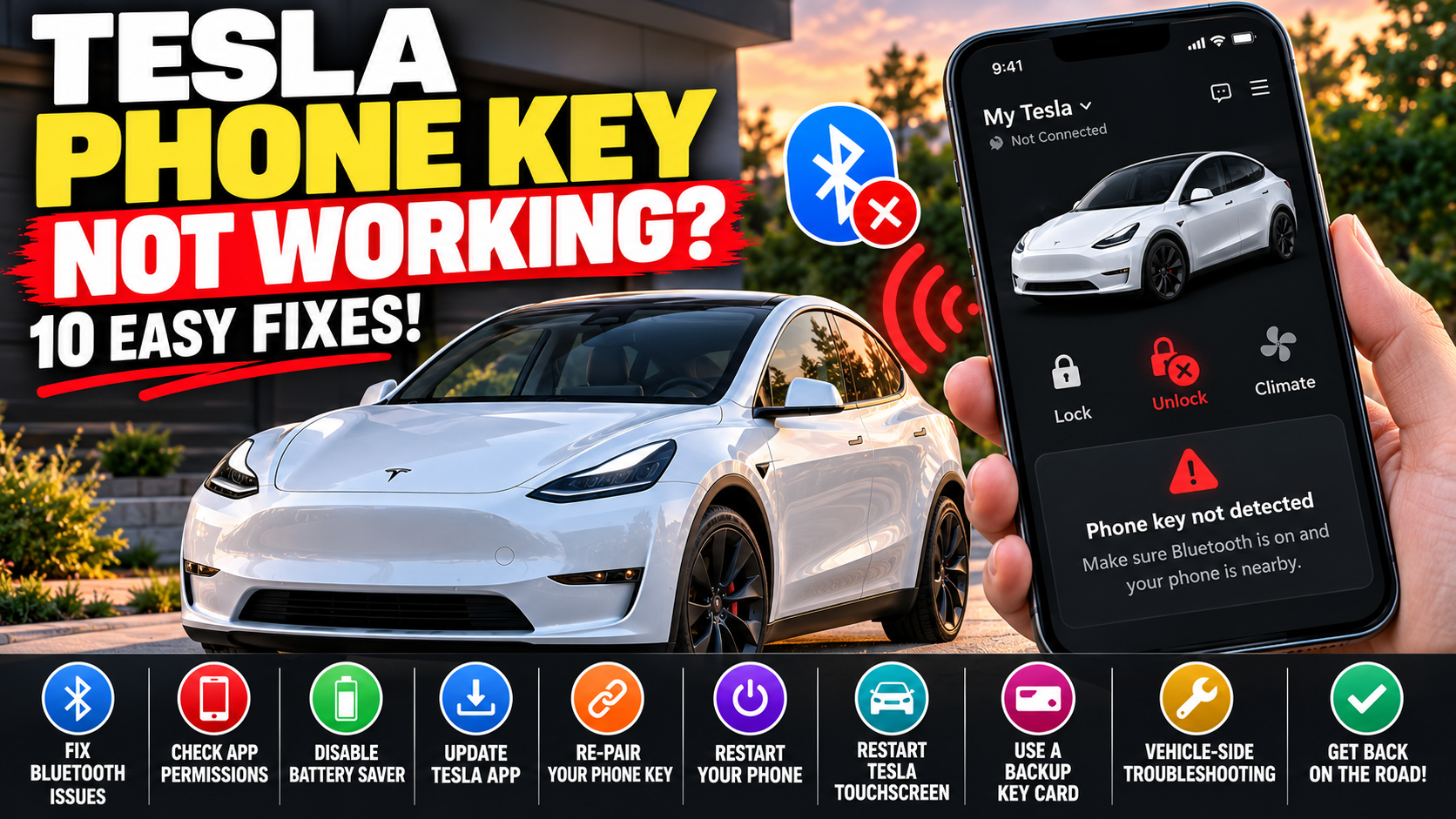
You walk up to your Tesla with your phone in your pocket, grab the door handle, and… nothing happens.
Your Tesla won’t unlock.
You pull out your phone, open the Tesla app, and suddenly everything works again. Or maybe your Tesla recognizes your phone sometimes but completely ignores it other times.
Sound familiar?
Tesla phone key problems are among the most frustrating issues owners can experience, especially when the feature has been working perfectly for months.
The good news? Many Tesla phone key problems can be resolved in just a few minutes without visiting a service center.
In this guide, we’ll explain why your Tesla phone key stops working, how to fix Bluetooth connection issues, and what to do when your Tesla won’t automatically unlock or recognize your phone.
Why Is My Tesla Phone Key Not Working?
Tesla’s phone key feature uses Bluetooth to communicate with your vehicle. When properly configured, your Tesla can recognize your authorized smartphone as you approach, allowing you to unlock the doors and drive without taking your phone out of your pocket.
However, several things can interfere with that connection.
Common causes include:
- Bluetooth is turned off or isn’t responding correctly.
- Your phone has restricted the Tesla app’s background activity.
- Location or Nearby Devices permissions have changed.
- Your phone is using a battery-saving mode.
- The Tesla app needs to be updated.
- Your phone key pairing has become unreliable.
- Your phone is in a pocket, bag, or position that interferes with Bluetooth communication.
- Your vehicle or smartphone needs a restart.
Before assuming something is wrong with your Tesla, try these troubleshooting steps.
1. Turn Bluetooth Off and Back On
Difficulty: Very Easy | Time: 30 Seconds
This is one of the quickest things to try when your Tesla suddenly stops recognizing your phone.
Your phone key relies on Bluetooth, so even a temporary Bluetooth connection problem can prevent your Tesla from detecting your smartphone.
How to Fix It
- Open your phone’s settings.
- Find Bluetooth.
- Turn Bluetooth off.
- Wait approximately 10 seconds.
- Turn Bluetooth back on.
- Wait a moment, then approach your Tesla and test the door handle.
You can also open the Tesla app to check whether your phone key is recognized.
Tesla tip: If this fixes the problem temporarily but it keeps returning, continue through the next steps. Something else may be interfering with the Bluetooth connection.
2. Check Your Tesla App Permissions
Difficulty: Easy | Time: 1–2 Minutes
Your phone may automatically change app permissions after a smartphone software update, security update, or settings change.
If the Tesla app doesn’t have the necessary permissions, phone key functionality may become unreliable.
For iPhone Users
- Open Settings on your iPhone.
- Find the Tesla app in your app settings.
- Check that Bluetooth permission is enabled.
- Confirm that the app has the location access requested for phone key functionality.
- Check that Background App Refresh is enabled where available.
For Android Users
- Open Settings.
- Select Apps.
- Find the Tesla app.
- Open Permissions.
- Check Bluetooth or Nearby Devices access.
- Review location permissions if requested by the app.
- Allow appropriate background activity.
Android settings vary depending on your phone manufacturer and operating system.
Important: Tesla’s phone key requirements can vary by smartphone and vehicle. Follow the permissions recommended by the Tesla app for your specific device.
3. Turn Off Battery Saver or Low Power Mode Temporarily
Difficulty: Very Easy | Time: 1 Minute
Battery-saving features can sometimes interfere with the background processes that allow your phone to communicate with your Tesla.
This is particularly worth checking if your phone key works normally when your smartphone has plenty of battery but becomes unreliable later in the day.
What to Do
On iPhone: Open Settings → Battery and check whether Low Power Mode is enabled.
On Android: Open Settings → Battery and check Battery Saver, Power Saving, or any app-specific battery optimization settings.
Temporarily disable the battery-saving setting and test whether your Tesla recognizes your phone more consistently.
On Android, you may also be able to allow the Tesla app to run without restrictive battery optimization.
You don’t necessarily need to leave all power-saving features disabled permanently. The goal is to identify whether they’re causing the problem.
4. Open the Tesla App Before Approaching Your Car
Difficulty: Very Easy | Time: 30 Seconds
Here’s a simple test that can reveal whether your phone’s background activity is contributing to the issue.
If your Tesla won’t unlock automatically, take out your phone and open the Tesla app.
Wait a few seconds, then try opening the door again.
If the vehicle recognizes your phone immediately after you open the app, the problem may be related to background app activity, permissions, or Bluetooth behavior.
What This Tells You
Your Tesla and phone may still be paired correctly.
Instead of deleting and reconnecting your phone key, first investigate whether your smartphone is preventing the Tesla app from operating normally in the background.
Also make sure you haven’t manually force-closed the Tesla app. On some smartphones, this can interfere with reliable background functionality.
5. Update Your Tesla Mobile App
Difficulty: Easy | Time: 2–5 Minutes
An outdated Tesla app can sometimes contribute to compatibility or connection problems, particularly after your smartphone receives an operating system update.
How to Check for Updates
iPhone: Open the App Store, find the Tesla app, and install any available update.
Android: Open the Google Play Store, find the Tesla app, and check for updates.
After updating, reopen the Tesla app and verify that your phone key is functioning.
It’s also worth checking whether your smartphone has a pending operating system update.
You don’t need to install an unrelated Tesla vehicle software update just to troubleshoot a phone key issue unless Tesla specifically identifies a relevant fix.
6. Restart Your Smartphone
Difficulty: Easy | Time: 2 Minutes
Sometimes the simplest fix works.
Smartphones can develop temporary Bluetooth or background-service problems after running continuously for long periods.
Restarting your phone refreshes those processes and can restore normal communication with your Tesla.
Steps
- Make sure you have a working backup key available.
- Restart your smartphone.
- Wait for it to finish starting.
- Unlock your phone.
- Confirm Bluetooth is enabled.
- Open the Tesla app if necessary.
- Test your phone key again.
If the issue disappears after restarting your phone, a temporary smartphone connection problem may have been responsible.
7. Check Whether Your Phone Is Too Far Away or Blocked
Difficulty: Very Easy | Time: 30 Seconds
Your phone doesn’t always need to be visible for Tesla phone key to work, but Bluetooth performance can vary depending on where you’re carrying it.
For example, your phone might be:
- Inside a thick backpack.
- Buried beneath other items in a purse.
- Positioned against your body in a way that weakens the signal.
- Inside a case or accessory that affects wireless communication.
If your Tesla isn’t unlocking, try holding your phone closer to the driver’s door.
Then test the connection again.
If the car consistently unlocks when the phone is in your hand but not when it’s in your pocket, Bluetooth signal strength or phone positioning may be contributing to the problem.
8. Remove and Reconnect Your Tesla Phone Key
Difficulty: Moderate | Time: 5–10 Minutes
If the previous steps haven’t helped, your phone key pairing may need to be recreated.
Before starting, make sure you have an authorized Tesla key card or another working key. You’ll generally need an authenticated key to set up a phone key again.
Do not remove your only working key.
How to Reconnect Your Phone Key
- Sit inside your Tesla with your smartphone and a working key card.
- Open the Tesla app and confirm you’re signed into the correct Tesla account.
- On the vehicle touchscreen, navigate to Controls → Locks.
- Find your phone in the list of registered keys.
- Remove the existing phone key entry if appropriate.
- Follow the Tesla app’s phone key setup instructions to add your phone again.
- Authenticate using your working key card when prompted.
- Test locking, unlocking, and vehicle recognition.
Menu names and pairing steps can vary by Tesla model and software version.
Why This May Work
Re-pairing creates a fresh authorized connection between your smartphone and vehicle.
This can help when the original pairing is no longer functioning reliably.
However, if your smartphone is restricting Bluetooth or background activity, reconnecting the phone key alone may not solve the underlying problem.
9. Restart Your Tesla Touchscreen
Difficulty: Easy | Time: A Few Minutes
If your phone key still isn’t working and your vehicle’s touchscreen or connectivity features are also behaving strangely, you can try restarting the touchscreen.
How to Restart the Tesla Touchscreen
- Safely park your Tesla.
- Shift into Park.
- Press and hold both steering-wheel scroll buttons until the touchscreen turns black.
- Wait for the Tesla logo and touchscreen interface to return.
- Check your phone key again.
This procedure restarts the touchscreen system.
It does not necessarily restart every vehicle controller or repair a hardware-related Bluetooth problem.
If the issue persists, continue with the final troubleshooting step.
10. Check for a Vehicle-Side Problem
Difficulty: Moderate | Time: Varies
If your Tesla consistently fails to recognize your phone even after updating the app, checking permissions, restarting your smartphone, and reconnecting the key, the issue may be on the vehicle side.
A useful way to narrow things down is to test another properly authorized phone key, if one is available.
What to Look For
Only one phone has problems: The issue may be related to that smartphone, its operating system, permissions, or pairing.
Multiple phones have problems: The vehicle’s Bluetooth or phone key system may need further investigation.
Your key card works but phone key doesn’t: This suggests the basic key-card access method is still functioning, but doesn’t by itself identify the cause of the phone key failure.
Your Tesla displays warnings: Follow the vehicle’s warning messages and Tesla’s instructions.
If multiple authorized phone keys fail consistently, consider requesting service through the Tesla app.
What If Your Tesla Phone Key Stops Working Away From Home?
Imagine finishing dinner, returning to your Tesla, and discovering that your phone won’t unlock the car.
Fortunately, Tesla owners have several options depending on what they have available.
Option 1: Use Your Tesla Key Card
A working Tesla key card is one of the most reliable backup methods.
On many Tesla models, you can unlock the vehicle by holding the card against the designated reader near the driver’s door pillar.
Once inside, follow the vehicle’s instructions for using the key card to authorize driving.
Reader locations vary by model.
Option 2: Use the Tesla App’s Unlock Command
If your phone has internet access and your Tesla can receive remote commands, you may be able to unlock the vehicle through the Tesla app.
However, remote unlocking and phone key authorization are not the same thing.
Unlocking your vehicle remotely doesn’t necessarily mean your phone is authorized to drive it.
Option 3: Use Another Authorized Key
If you have another working key card, phone key, or compatible key fob, use that to access the vehicle.
Option 4: Contact Tesla Support
If you cannot access your vehicle safely, use Tesla’s support or roadside assistance options as appropriate.
Important: Never leave your only backup key inside a locked vehicle.
How to Prevent Tesla Phone Key Problems
While you can’t prevent every Bluetooth connection issue, a few habits can reduce the chances of getting locked out.
Keep a Backup Key Card
Always maintain access to a working Tesla key card or another authorized key.
This is especially important when traveling or relying heavily on your phone.
Keep Your Tesla App Updated
Regular updates can include bug fixes, compatibility improvements, and new features.
Check Permissions After Smartphone Updates
Major iOS and Android updates can sometimes change how apps operate in the background.
If your phone key starts behaving differently immediately after a phone update, review the Tesla app’s permissions.
Avoid Aggressive Battery Optimization
If you discover that battery optimization is interfering with phone key operation, adjust the Tesla app’s background settings appropriately.
Test Your Phone Key Before a Long Trip
Before leaving home, confirm that your Tesla recognizes your phone and that your backup key is available.
Tesla Phone Key Troubleshooting: Quick Reference
| Problem | What to Try First |
|---|---|
| Tesla won’t unlock when approaching | Toggle Bluetooth off and on |
| Works only when Tesla app is open | Check background activity and permissions |
| Stopped working after phone update | Review permissions and update the Tesla app |
| Works inconsistently from your pocket | Test Bluetooth signal and phone positioning |
| Tesla doesn’t recognize paired phone | Restart phone and consider re-pairing |
| Multiple authorized phones fail | Investigate a possible vehicle-side issue |
| Phone battery is dead | Use a working backup key card |
Frequently Asked Questions
Why does my Tesla only unlock when I open the app?
This may indicate that your phone is restricting background activity or that the Tesla app isn’t maintaining its Bluetooth connection properly. Check app permissions, battery-saving settings, and Bluetooth.
Does Tesla phone key work without internet?
Once properly configured, Tesla phone key generally uses Bluetooth for nearby vehicle access and doesn’t require an active internet connection for that local communication. However, initial setup and certain app features may require connectivity.
Does Tesla phone key work in Airplane Mode?
It may work if Bluetooth remains enabled and the phone key is already configured. Airplane Mode behavior varies by smartphone and settings, so don’t rely on it without testing.
Why does my Tesla phone key stop working after an iPhone update?
A software update can sometimes change permissions, background activity, or Bluetooth behavior. Review the Tesla app settings, install available app updates, and restart the phone.
Can I start my Tesla without my phone?
Yes, if you have another authorized key such as a working Tesla key card or compatible key fob. The exact method depends on your vehicle.
Should I delete and reinstall the Tesla app?
Not as your first troubleshooting step. Try Bluetooth, permissions, app updates, and a phone restart first. Reinstalling the app may require you to set up your phone key again, so ensure you have a working backup key before doing so.
Can Tesla Service fix phone key problems?
Tesla Service can help diagnose persistent vehicle-side problems. However, many phone key issues originate from smartphone settings or software, so basic troubleshooting is worth trying first.
Don’t Lose Your Tesla Backup Key Card!
🔑 One more Tesla owner tip: Since your phone key can occasionally stop working, keeping a backup Tesla key card handy is always a smart idea. But those thin key cards can easily get misplaced in your wallet, purse, or vehicle. That’s why we recommend checking out this Key Card Holder Case for Tesla Model Y, Model 3, and Cybertruck. It’s a convenient way to keep your backup key card protected, organized, and easier to find when you need it most. Whether you’re traveling, running errands, or dealing with an unexpected phone key issue, having your backup card readily accessible can save you a lot of frustration.
👉 Shop the Tesla Key Card Holder Case on Amazon
As an Amazon Associate, we earn from qualifying purchases.
Final Thoughts: Most Tesla Phone Key Problems Are Worth Troubleshooting First
Your Tesla phone key is one of the most convenient features of owning a Tesla—until it stops working.
Fortunately, many common connection problems can be resolved by checking Bluetooth, reviewing smartphone permissions, updating the Tesla app, or reconnecting your phone key.
If your Tesla suddenly stops unlocking when you approach it, start with the simplest fixes before removing keys or requesting service.
And remember: always keep a working backup key available.
More Helpful Tesla Owner Resources
Looking for more ways to make Tesla ownership easier?
Explore our Tesla Owner Guides for additional tutorials, maintenance tips, and troubleshooting advice.
Want to know how much money your Tesla is saving you? Try our free Tesla Savings Calculator.
You can also browse Tesla Accessories for useful ownership products.
Have you ever had your Tesla refuse to unlock because of a phone key issue?
Leave a comment below and tell us which fix worked for you!