
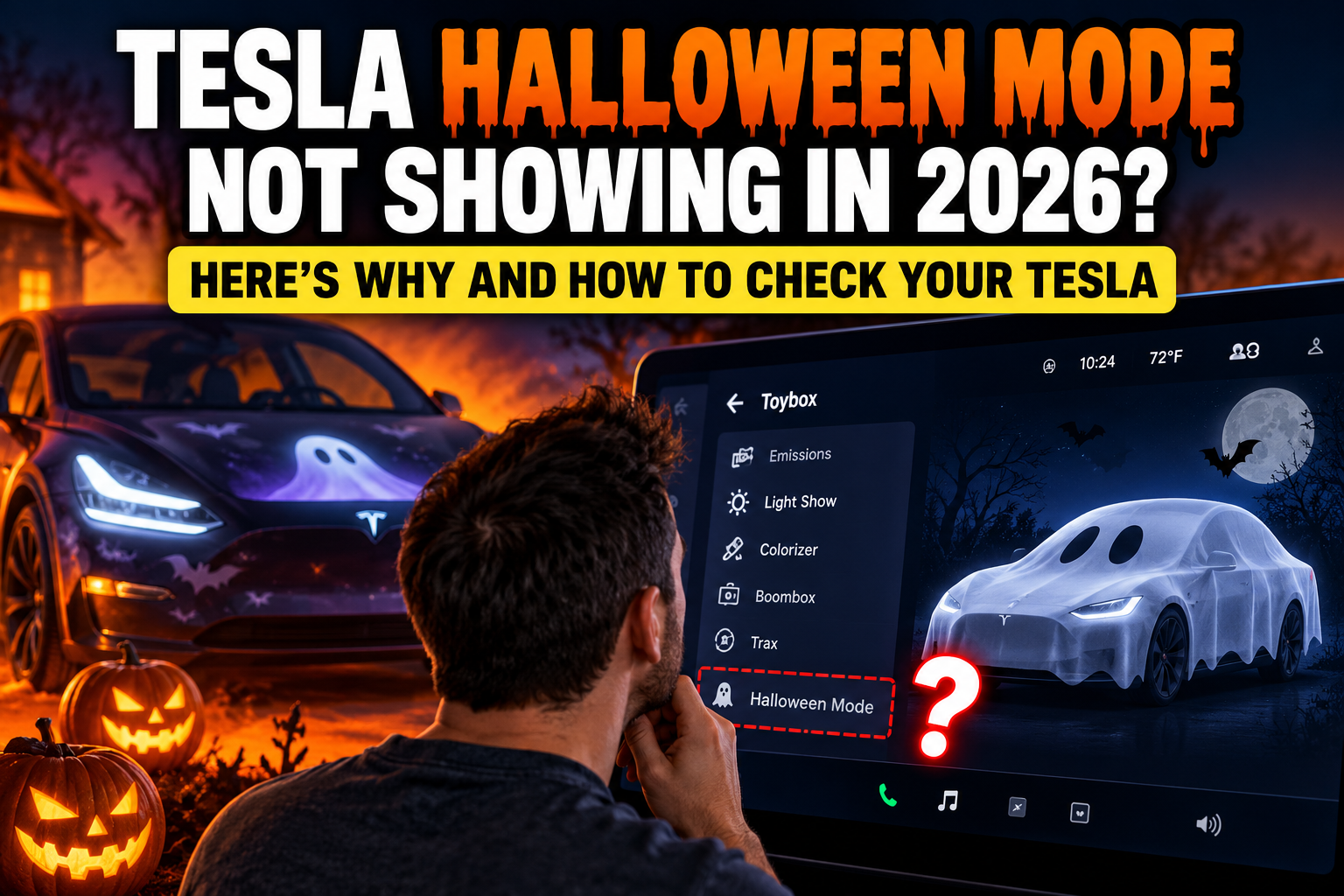
Can’t find Tesla Halloween Mode in your Toybox? You’re not alone! Tesla’s 2026 Halloween update brings ghost-themed vehicle animations, spooky sounds, Trick or Treat Mode, and a Halloween light show. But some Tesla owners are discovering that these features aren’t showing up on their vehicles.
Maybe your Tesla hasn’t received the update yet. Perhaps you installed the latest software but can’t find the Halloween settings. Or you might own an older Tesla that doesn’t support the new features.
The good news is that there are several things you can check before assuming something is wrong.
In this guide, we’ll explain why Tesla Halloween Mode might not be showing in 2026, how to check your software version, how to identify your Tesla’s processor, and which Halloween features your vehicle may support.
Quick Answer: Why Is Tesla Halloween Mode Missing?
If Halloween Mode isn’t showing on your Tesla, one of these explanations is likely:
- Your Tesla hasn’t received the required software update. Halloween Mode first appeared with software version 2026.38.3, with the feature also included in certain later builds.
- Your Tesla has an older Intel infotainment processor. Current reports indicate that the full 2026 Halloween Mode experience is intended for AMD Ryzen-equipped vehicles.
- Your vehicle is on a different software update branch. Tesla distributes updates in stages, and not every vehicle receives the same build simultaneously.
- You’re looking in the wrong menu. Halloween Mode is located in Toybox on supported vehicles.
- Your Tesla supports only certain features. Some Halloween-related functions depend on vehicle hardware, including exterior speakers and supported lighting equipment.
Important: Installing a software update doesn’t automatically mean every feature listed for that update is available on your particular Tesla.
Let’s walk through the checks.
1. Check Your Tesla Software Version
The first thing to do is find out which software version your Tesla is currently running.
How to Check Your Tesla’s Software
- Sit inside your Tesla and turn on the touchscreen.
- Tap Controls.
- Select Software.
- Look for the installed software version.
- Open the release notes to see which features are included for your vehicle.
Tesla Halloween Mode was introduced with software update 2026.38.3. The feature has also appeared in subsequent 2026.38-series builds, including 2026.38.3.1, 2026.38.5, and 2026.38.5.1.
However, the software version alone does not guarantee Halloween Mode compatibility.
If your Tesla is still running an earlier software version, you may simply need to wait for the update to become available.
How to Check for an Available Update
Navigate to:
Controls → Software
Your Tesla will check for available software updates when connected and able to communicate with Tesla’s servers.
You can also check the Tesla mobile app for an update notification.
If an update is available, follow the on-screen instructions to install it.
Make sure your Tesla has a reliable Wi-Fi connection, adequate battery charge, and is safely parked before beginning installation.
Can You Force the Halloween Update?
Unfortunately, there’s no guaranteed way to force Tesla to deliver a specific software version.
Tesla rolls out updates gradually based on vehicle configuration, hardware, region, and other factors.
You can check whether your vehicle’s Software Update Preference is set to Advanced under Controls → Software, if that option is available. This indicates your preference for receiving newer updates earlier, but it does not guarantee immediate delivery.
Avoid downloading unofficial software files or attempting unsupported installation methods.
2. Check Whether Your Tesla Has Intel or AMD Ryzen
This may be the most important troubleshooting step.
Tesla has used different infotainment processors across its vehicle lineup.
Older vehicles commonly use an Intel Atom processor, while newer vehicles use AMD Ryzen hardware.
The infotainment processor powers many touchscreen features, graphics, visualizations, and entertainment functions.
Tesla’s new Halloween Mode includes detailed animations and visual effects that can require more processing power than older systems provide.
How to Find Your Tesla’s Processor
Follow these steps:
- Open Controls on your Tesla touchscreen.
- Select Software.
- Tap Additional Vehicle Information.
- Find the entry labeled Infotainment Processor.
- Check whether it says Intel Atom or AMD Ryzen.
Here’s what the result generally means:
| Infotainment Processor | Halloween Mode 2026 |
|---|---|
| AMD Ryzen | Supported on eligible vehicles with the appropriate software |
| Intel Atom | Main Halloween Mode currently reported as unavailable |
| Unknown | Check Additional Vehicle Information and your vehicle’s release notes |
Does This Mean Older Teslas Won’t Get Halloween Mode?
Current reports suggest that Intel-equipped Teslas are not receiving the new Halloween Mode package, even when they receive other features from the same software update.
Some older vehicles may still have existing customization options or other seasonal features, but those should not be confused with the full 2026 Halloween Mode experience.
Tesla could change availability in a future update. For now, owners should rely on the release notes displayed for their own vehicles rather than assuming that every Tesla receiving 2026.38 will have identical features.
Tesla owner tip: Don’t rely only on the vehicle’s model year to determine which processor you have. Tesla transitioned between Intel and AMD hardware during different production periods. Checking Additional Vehicle Information is the more reliable method.
3. Where Is Halloween Mode Located in Tesla?
If your Tesla has compatible hardware and the required software, you should be able to find Halloween Mode through the vehicle’s Toybox.
How to Find and Activate Halloween Mode
- Park your Tesla safely.
- Open the Toybox from your touchscreen.
- Find Halloween Mode.
- Open the Halloween Mode menu.
- Select the available Halloween features you want to use.
Depending on your vehicle and software, the options may include Ghost Costume and Trick or Treat.
Ghost Costume changes your Tesla’s on-screen appearance into a spooky ghost-themed vehicle.
Trick or Treat uses supported exterior lighting and sounds to react to people approaching the parked vehicle.
If you don’t see Halloween Mode in Toybox, check your installed software version and infotainment processor before trying other troubleshooting steps.
For a complete walkthrough of the features, read our Tesla Halloween Mode 2026 guide.
4. Why Does My Tesla Have the Update but No Halloween Mode?
This is one of the most confusing situations for Tesla owners.
You might have installed software version 2026.38.3 or a later 2026.38 build and still not see Halloween Mode.
The reason may be hardware compatibility.
Tesla software releases can contain features that are available only on specific vehicle configurations.
For example, two Model Y vehicles running similar software may have different infotainment processors, depending on when they were built.
One vehicle may receive Halloween Mode while the other does not.
There is also a difference between the infotainment processor and the computer used for driver-assistance functions.
An older Tesla with Full Self-Driving hardware does not necessarily have the AMD Ryzen infotainment processor required for the latest graphics-heavy entertainment features.
If Halloween Mode is missing from your installed release notes, that is a strong indication that the feature isn’t currently enabled for your vehicle configuration.
5. Tesla Halloween Mode Compatibility: Model Y, Model 3, Model S, Model X and Cybertruck
Halloween Mode is associated with supported versions of Tesla’s current vehicle lineup.
However, compatibility depends on more than the model name.
Tesla Model Y
Compatible AMD Ryzen-equipped Model Y vehicles can receive the 2026 Halloween Mode features through an eligible software update.
Owners of earlier Intel-equipped Model Y vehicles should check their release notes carefully.
Tesla Model 3
The same general distinction applies to Model 3.
Newer AMD-equipped vehicles may support Halloween Mode, while older Intel-based versions are currently reported as missing the new package.
Tesla Model S and Model X
Refreshed Model S and Model X vehicles with compatible infotainment hardware are included in the Halloween Mode rollout.
Older vehicles may not receive the same entertainment and visualization features.
Tesla Cybertruck
Cybertruck is among the supported vehicle models, with Halloween-themed visualizations adapted to its distinctive appearance.
As with other vehicles, actual feature availability depends on the installed software and vehicle configuration.
Bottom line: The best way to confirm compatibility is to check both your Tesla’s infotainment processor and the release notes installed on your vehicle.
6. Halloween Ghost Costume Not Showing?
Ghost Costume is one of the most recognizable parts of Tesla’s 2026 Halloween update.
When enabled, it transforms the vehicle visualization into a ghost-themed version of your Tesla.
Depending on the supported vehicle and display state, the Halloween environment may also include a spooky parked scene and themed driving visualizations.
If Ghost Costume isn’t showing:
- Confirm that Halloween Mode is present in Toybox.
- Open the Halloween Mode menu and make sure Ghost Costume is enabled.
- Check whether your vehicle uses AMD Ryzen infotainment hardware.
- Review your software release notes for Halloween Mode support.
- Try viewing the feature while safely parked.
If the entire Halloween Mode menu is missing, the problem is unlikely to be a simple Ghost Costume toggle.
7. Trick or Treat Mode Not Working?
Trick or Treat is designed to add spooky effects when people approach your parked Tesla.
On supported vehicles, it can use lights and exterior sounds to create a Halloween-themed experience.
If the feature isn’t responding, check the following:
Make sure Trick or Treat is enabled. Ghost Costume and Trick or Treat are separate options.
Keep your Tesla in Park. Trick or Treat is intended for parked-vehicle use and may turn off when the vehicle is shifted out of Park.
Check the vehicle’s power state. Certain low-power conditions may disable the feature.
Confirm hardware compatibility. Exterior audio effects require compatible vehicle equipment.
Test in a safe location. Use a private driveway or another suitable area where lights and sounds won’t create a distraction or nuisance.
Important Security Warning
Enabling Trick or Treat can temporarily disable Sentry Mode, the security alarm, and walk-away door locking.
That means your Tesla may not have its normal parked-vehicle security protections while this feature is active.
If you use Trick or Treat for a Halloween display, turn it off afterward and verify that your preferred security and locking settings are restored.
Do not assume your Tesla is automatically locked just because you walked away with your phone.
8. Tesla Halloween Light Show Not Appearing?
The 2026 Halloween update also introduces a themed light show often referred to as the Halloween Fright Show.
If you cannot find it, there are several possibilities.
First, verify that your Tesla received the software release containing the feature.
Next, check Toybox and the available Light Show options. Menu labels and supported functions can vary by vehicle and software version.
If the show is available but won’t start, ensure the vehicle is parked and follow the on-screen instructions.
A light show should be performed only in a safe, suitable location with enough space around the vehicle.
Some light shows can involve moving vehicle components, flashing lights, and sound effects. Keep people and objects clear of the vehicle and avoid using the feature where it could distract nearby traffic.
If your vehicle’s release notes don’t list the Halloween show, installing a USB drive or restarting the touchscreen will not necessarily make the built-in feature available.
9. Should You Restart Your Tesla Touchscreen?
If your Tesla has the correct hardware, the Halloween Mode feature appears in its release notes, but the touchscreen isn’t displaying the menu correctly, a touchscreen restart may be worth trying.
How to Restart the Tesla Touchscreen
- Safely park your Tesla.
- Keep the vehicle in Park.
- Press and hold both scroll wheels on the steering wheel until the touchscreen turns black.
- Wait for the Tesla logo and display to return.
- Reopen Toybox and check for Halloween Mode.
This restarts the touchscreen system. It does not install missing software, change your infotainment processor, or unlock unsupported features.
If your vehicle is Intel-based and the Halloween Mode package isn’t supported, a restart is unlikely to resolve the issue.
10. Why Haven’t I Received the 2026 Halloween Update Yet?
Tesla doesn’t deliver every update to every eligible vehicle at the same time.
Software rollouts may happen in multiple waves.
Some vehicles receive a release shortly after it becomes available, while others remain on an earlier version.
Vehicles using different software branches may also receive the same seasonal feature through different update builds.
For example, owners following certain Full Self-Driving software branches may see Halloween Mode included in a later 2026.38-series update rather than the initial release.
If you have compatible hardware but haven’t received an eligible update yet, the best approach is to keep your Tesla connected to Wi-Fi, monitor the Software screen, and watch for an update notification.
There is no need to repeatedly restart the vehicle or attempt unofficial software installation.
Tesla Halloween Mode 2026 Troubleshooting Checklist
Before giving up on Halloween Mode, run through this quick checklist:
- Check your installed Tesla software version.
- Open the release notes and look for Halloween Mode.
- Check Additional Vehicle Information for Intel Atom or AMD Ryzen.
- Look for Halloween Mode inside Toybox.
- Enable Ghost Costume or Trick or Treat if available.
- Keep your vehicle parked when testing supported features.
- Verify compatible exterior-speaker hardware for sound-based effects.
- Restart the touchscreen only if a supported feature appears to be malfunctioning.
- Wait for an eligible update if your Tesla hasn’t received one.
- Turn off Trick or Treat after use and verify your security settings.
If your Tesla has an Intel Atom processor, current reports suggest that the missing Halloween Mode menu is a compatibility limitation rather than something you can fix by changing a setting.
Frequently Asked Questions
Why is Halloween Mode not showing on my Tesla Model Y?
Your Model Y may not have received the required software update, or it may use an older Intel Atom infotainment processor. Check Controls → Software → Additional Vehicle Information to identify the processor.
Is Tesla Halloween Mode available on all 2026 Teslas?
Halloween Mode is supported on eligible Tesla models with compatible hardware and software. Availability should be confirmed through your vehicle’s release notes rather than the model year alone.
Can Intel Teslas get Halloween Mode?
As of October 18, 2026, reports indicate that Intel-equipped Teslas are not receiving the main 2026 Halloween Mode package. Tesla could change support in a future release, but no guaranteed workaround has been established.
Does Tesla Halloween Mode require Full Self-Driving?
Halloween Mode is an entertainment feature, not an FSD driving feature. Some vehicles receive it through software builds that also contain FSD updates, but that doesn’t mean purchasing an FSD subscription will enable Halloween Mode on incompatible hardware.
Can I install Halloween Mode manually?
There is no supported method for manually installing an unavailable Tesla software feature outside Tesla’s normal update process. Avoid unofficial downloads or unsupported vehicle modifications.
Will Tesla Halloween Mode disappear after October 31?
The feature’s description suggests seasonal effects may be usable beyond Halloween. However, Tesla can change software functionality and availability through future updates.
Why does my Tesla have the Halloween update but not Ghost Costume?
Your vehicle may have received other features from the same software release without receiving Halloween Mode itself. Check your processor and the vehicle-specific release notes.
Does Trick or Treat Mode disable Sentry Mode?
Yes. On supported vehicles, enabling Trick or Treat can disable Sentry Mode, the security alarm, and walk-away locking while the feature is active. Restore and verify your normal security settings after using it.
Final Thoughts: Don’t Give Up on Tesla Halloween Mode Just Yet
Tesla Halloween Mode 2026 is one of the company’s more entertaining seasonal software additions, with spooky visualizations, interactive sounds, and themed lighting effects.
But if the feature isn’t showing on your vehicle, it’s important to understand the difference between waiting for an update and owning hardware that doesn’t currently support the feature.
Start by checking your Tesla’s software version and infotainment processor. Those two details will help explain most missing-feature situations.
For compatible vehicles, an eligible update may be all that’s needed. For older Intel-equipped Teslas, current reports suggest the main Halloween Mode package isn’t available.
Want to see what all the excitement is about?
Read our complete guide: Tesla Halloween Mode 2026: How to Activate Ghost Mode, Trick or Treat & the Halloween Light Show
And for more helpful ownership tips, explore our Tesla Owner Guides.
Have you received Halloween Mode on your Tesla?
Leave a comment with your Tesla model, model year, infotainment processor (Intel or AMD), and software version. Let other owners know whether the Halloween features are showing up on your vehicle!