
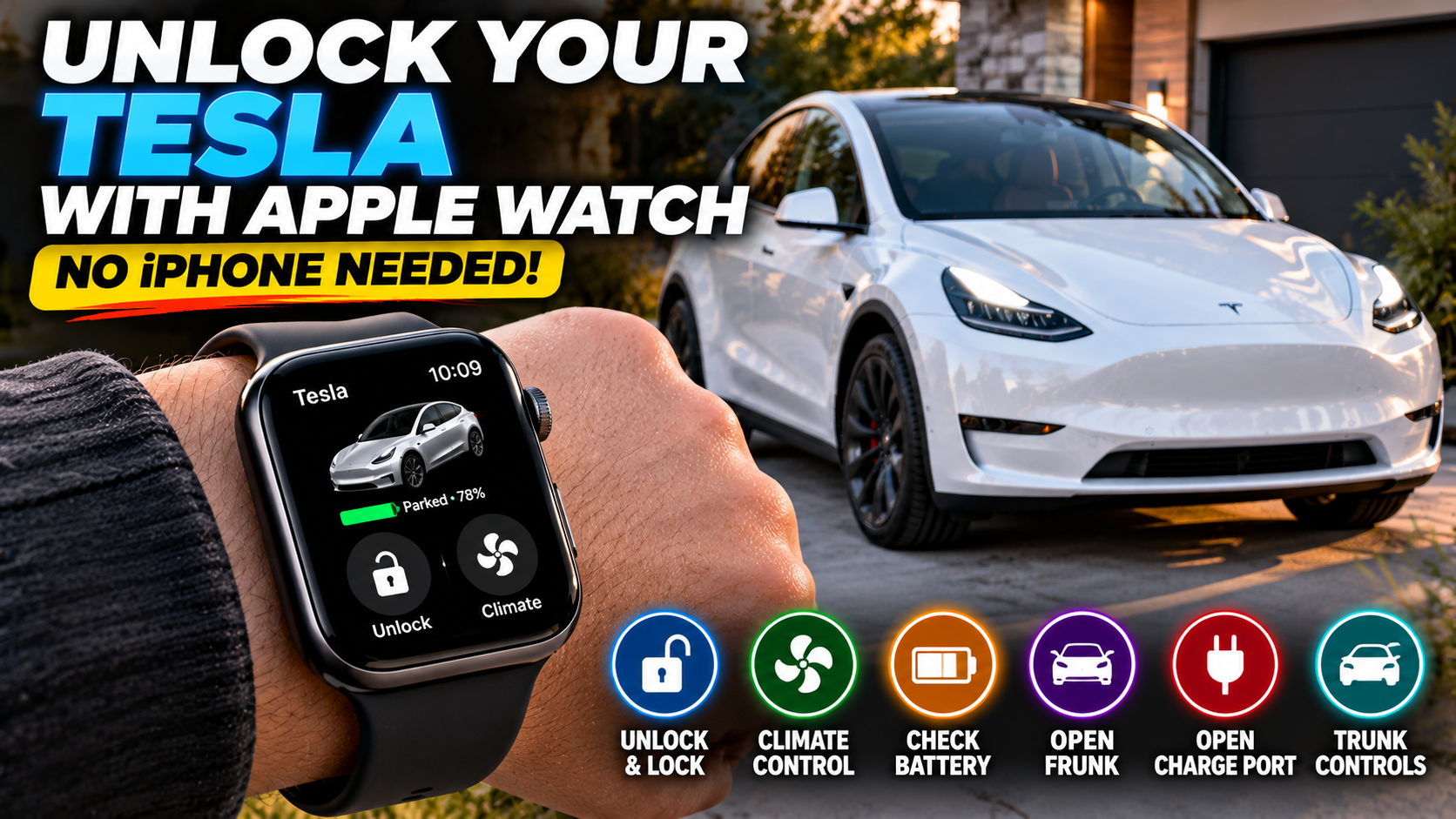
Did you know you can unlock your Tesla, check its battery level, and control several vehicle features directly from your Apple Watch—even when your iPhone isn’t with you?
This has become one of my favorite Tesla features, and it’s something I actually use all the time.
Here’s a situation that happens to me more often than I’d like to admit.
I walk out of the house, head toward my Tesla, and realize I’ve left my iPhone inside.
Maybe I just need to grab something from the car, open the trunk, or get something out of the center console.
Normally, I’d have to turn around, walk back inside, find my phone, and then head back out.
But now I don’t have to.
I simply walk up to my Tesla wearing my Apple Watch, and I can unlock the car without having my phone with me.
It’s one of those small conveniences that doesn’t sound like a big deal until you start using it regularly.
And unlocking the doors is just the beginning.
Tesla’s official Apple Watch app offers several useful features, including vehicle locking, climate controls, battery monitoring, and access to charging functions.
In this guide, I’ll explain how to set up your Apple Watch as a Tesla key, what features you can use, and why I think it’s one of the most underrated conveniences available to Tesla owners.
Can You Really Unlock a Tesla With an Apple Watch?
Yes!
Tesla’s official Apple Watch app allows compatible watches to function as a vehicle key.
Once you’ve paired your Apple Watch with your Tesla, the watch can work similarly to your phone key.
That means you can approach your Tesla and unlock it without pulling out your iPhone or pressing a button on the watch.
The vehicle communicates with your watch using Bluetooth.
As long as your Apple Watch is properly configured, powered on, and able to communicate with the vehicle, it can provide convenient key functionality.
Why I Love This Feature
For me, it’s not about replacing my phone entirely.
It’s about having another way to access my Tesla when my phone isn’t nearby.
Sometimes I leave my iPhone charging inside the house.
Other times, I just want to grab something from the car without carrying my phone.
Having the Apple Watch already on my wrist makes the process incredibly convenient.
It’s one of those features I didn’t realize I’d appreciate so much until I started using it.
What Do You Need to Use an Apple Watch as a Tesla Key?
Before getting started, make sure your devices are compatible.
Apple Watch Requirements
Tesla’s official Apple Watch app requires:
- Apple Watch Series 6 or newer
- Apple Watch SE (2nd generation) or newer
- Apple Watch Ultra or newer
- watchOS 11 or later
- Tesla mobile app version 4.39.5 or newer
- Tesla vehicle software version 2024.44.25 or newer
You’ll also need an iPhone paired with your Apple Watch for the initial app setup.
Your Tesla must support the Watch Key feature.
If you have an older Tesla or older Apple Watch, check compatibility before assuming the feature will work.
The official Tesla Apple Watch app is available without purchasing a separate third-party watch-key app.
How to Set Up Your Apple Watch as a Tesla Key
Setting up the Apple Watch is fairly straightforward.
You’ll need your iPhone, Apple Watch, and Tesla nearby.
Step 1: Update Your Tesla App
On your iPhone:
- Open the App Store.
- Search for Tesla.
- Check whether an update is available.
- Install the latest version.
Make sure you’re signed into the Tesla account associated with your vehicle.
Step 2: Update Your Apple Watch
On your iPhone:
- Open the Watch app.
- Select General.
- Tap Software Update.
- Install an available compatible watchOS update.
You can also check software updates directly from your Apple Watch.
Step 3: Install the Tesla App on Your Apple Watch
Open the Watch app on your iPhone.
Find the Tesla app under the available apps section and install it if necessary.
You should then see the Tesla app on your Apple Watch.
Press the Digital Crown to view your installed apps and open Tesla.
Step 4: Set Up Watch Key
With your Apple Watch near your Tesla:
- Open the Tesla app on your Apple Watch.
- Select Set Up Watch Key, if prompted.
- Follow the pairing instructions.
- Complete any authorization requested by your vehicle.
- Confirm that the watch has been successfully added as a key.
Have your Tesla key card available in case the pairing process requires authorization.
If the setup doesn’t work immediately, make sure Bluetooth is enabled and you’re close to the vehicle.
Step 5: Test Your Apple Watch Key
Once pairing is complete, test the feature.
Leave your iPhone away from the vehicle so the phone key doesn’t interfere with your test.
Approach your Tesla while wearing your Apple Watch.
Try opening the driver’s door.
If everything is configured correctly, the watch should allow the vehicle to unlock.
You can also test locking by walking away from the vehicle, provided walk-away locking is enabled and supported.
Tip: Test the setup at home before relying on your watch as your only available key.
1. Unlock and Lock Your Tesla Without Your iPhone
This is easily my favorite feature.
Once the Apple Watch is paired as a vehicle key, it can automatically unlock your Tesla as you approach.
You don’t need to take your phone out of your pocket.
You don’t need to open an app.
And you don’t need to carry your Tesla key card in your hand.
My Everyday Example
I might be working around the house and realize I left something in my Tesla.
Instead of finding my phone, I just walk outside with my Apple Watch on.
The Tesla recognizes my watch, and I can get into the vehicle.
It’s that simple.
And because I already wear my Apple Watch throughout the day, it’s almost always available.
For anyone who frequently forgets their phone or makes quick trips out to the car, this feature is extremely convenient.
2. Use Your Apple Watch to Drive Your Tesla
Here’s another benefit.
On compatible Tesla vehicles, a properly paired Apple Watch can act as a key for driving—not just unlocking the doors.
That means your watch can authorize vehicle operation in much the same way as a supported phone key.
However, there are some important things to remember.
The watch must be properly paired, have sufficient battery power, and maintain the necessary connection with your vehicle.
If your Tesla has PIN to Drive enabled, you’ll still need to enter your PIN.
And if your watch battery dies or the connection fails, you may need another authorized key.
For that reason, I recommend keeping a Tesla key card available as a backup.
3. Check Your Tesla Battery Level From Your Wrist
Another useful feature is being able to check your Tesla’s battery charge level directly from your Apple Watch.
Instead of grabbing your phone and opening the Tesla app, you can glance at your watch.
This is especially convenient when your Tesla is charging at home.
For example, you might be inside the house getting ready to leave and want to see how much charge is available.
Open the Tesla app on your watch and check the battery status.
It’s a quick way to stay informed without reaching for your iPhone.
Why This Is Useful
- Check battery status before leaving home.
- See how much charge is available.
- Monitor your vehicle without opening the iPhone app.
- Quickly review your Tesla’s status while you’re away from the car.
It’s a small feature, but one that makes the Apple Watch integration more useful.
4. Preheat or Cool Your Tesla From Your Apple Watch
This is another feature I really like, especially during extreme weather.
Tesla’s Apple Watch app lets you control the vehicle’s climate system.
That means you can start warming or cooling your Tesla before getting inside.
Winter Example
Imagine it’s 20°F outside.
You’re getting ready to leave the house, but your Tesla has been sitting in the driveway overnight.
Instead of walking out to a freezing cabin, you can activate climate control from your Apple Watch.
By the time you’re ready to leave, your vehicle can be much more comfortable.
Summer Example
The same feature is useful during hot weather.
If your Tesla has been parked outside in the sun, you can turn on the air conditioning before getting inside.
Money-Saving Tip
When possible, precondition your Tesla while it’s plugged into your home charger.
This can help preserve more battery energy for driving, although heating and cooling still consume electricity.
If you’re interested in reducing charging expenses, check out the Tesla charging calculators on MyTeslaSavings.com.
5. Open Your Tesla Frunk From Your Apple Watch
The front trunk, commonly called the frunk, is one of my favorite storage features on a Tesla.
And the Apple Watch makes it even more convenient.
Instead of using your phone or touchscreen, you can open the frunk directly from the Tesla watch app.
When Is This Useful?
Imagine you’re carrying groceries or other items and want to put them in the frunk.
You can access the control from your wrist without searching for your phone.
It’s also useful when you’re cleaning your Tesla, organizing your storage compartments, or grabbing accessories.
Just remember that on many Tesla models, closing the frunk still requires doing so manually according to the Owner’s Manual.
6. Open Your Tesla Charging Port
Here’s a feature that makes perfect sense for Tesla owners who charge at home.
The Apple Watch app allows you to open your Tesla’s charging port.
Instead of opening the Tesla app on your iPhone, you can access the charging-port control from your watch.
Why It’s Convenient
Let’s say you walk into your garage and decide to plug in your Tesla.
Your phone is inside the house.
With your Apple Watch, you can open the charge port without going back for your phone.
It’s another example of how the watch can make everyday Tesla ownership more convenient.
Depending on your charging equipment, you may also be able to open the charge port using the button on a compatible Tesla charging connector.
7. Access Your Tesla Trunk Controls
Tesla’s Apple Watch integration also supports trunk functions on compatible vehicles.
That can be especially useful when you’re loading groceries, luggage, or other belongings.
Instead of reaching for your phone, you can use the watch app to access the available trunk controls.
The exact functions may vary by Tesla model and software version.
For example, powered trunk closing is not available on every vehicle configuration.
Still, having trunk access from your wrist is a convenient addition.
8. Add Tesla Information to Your Apple Watch Face
Another useful feature is the ability to display certain Tesla information directly on a compatible Apple Watch face.
Apple Watch complications are small information displays that can appear alongside the time.
Depending on the watch face and Tesla app support, you may be able to display your vehicle’s battery charge information.
This makes it even easier to check your Tesla without opening the full app.
How to Add a Tesla Complication
- Open the Watch app on your iPhone.
- Select your current watch face.
- Choose an available complication position.
- Look for Tesla among the supported apps.
- Select the available Tesla information.
- Save your changes.
Available complications can vary with your watchOS version, watch face, and Tesla app version.
For Tesla owners who regularly check their battery status, this can be a useful customization.
Apple Watch vs. iPhone: Which Is Better for Tesla Owners?
Both devices have advantages.
| Feature | Apple Watch | iPhone Tesla App |
|---|---|---|
| Passive vehicle unlocking | Yes, when paired | Yes, when paired |
| Vehicle locking | Yes | Yes |
| Drive authorization | Yes, when supported | Yes |
| Battery status | Yes | Yes |
| Climate control | Yes | Yes |
| Frunk access | Yes | Yes |
| Charge port access | Yes | Yes |
| Detailed charging controls | Limited | More extensive |
| Trip planning and navigation | Limited | More extensive |
| Vehicle settings and account management | Limited | More extensive |
The iPhone app remains the more comprehensive option for managing your Tesla.
But for quick access to the vehicle and common everyday functions, the Apple Watch is extremely convenient.
I don’t see the Apple Watch as a replacement for the iPhone. I see it as an excellent companion.
Does Your Apple Watch Need Cellular Service to Unlock Your Tesla?
This is an important question.
No, a cellular Apple Watch plan is not required for the Bluetooth Watch Key function.
Once your compatible watch is paired as a Tesla key, it can communicate directly with the vehicle using Bluetooth.
That’s why the feature can work even when you’ve left your iPhone inside the house.
However, some remote vehicle commands may require an internet connection.
If your watch relies on your iPhone for connectivity and the phone isn’t nearby, those remote commands may be unavailable.
The distinction is important:
Bluetooth Watch Key: Designed for nearby vehicle access.
Remote app commands: May depend on network connectivity.
For the simple task of walking up to your Tesla and unlocking it, the Bluetooth key feature is the important one.
What Happens if Your Apple Watch Battery Dies?
If your Apple Watch runs out of power, you shouldn’t assume it will continue working as a Tesla key.
That’s why having a backup key is important.
I recommend keeping your Tesla key card accessible.
You should also make sure your iPhone phone key is properly configured.
That way, if your Apple Watch is charging, out of battery, or temporarily disconnected, you have another way to access your Tesla.
It’s also a good idea to test your backup key periodically.
Is Using an Apple Watch as a Tesla Key Secure?
Tesla uses an authorized pairing process to register the Apple Watch as a vehicle key.
Once paired, the watch is treated as a key associated with your Tesla.
That makes it important to protect the watch just as you would protect your phone or physical key.
Security Tips
- Enable a passcode on your Apple Watch.
- Use wrist detection.
- Keep watchOS updated.
- Remove old or unused keys from your Tesla.
- Review your vehicle’s key list periodically.
- Consider enabling PIN to Drive for an additional layer of protection.
If you lose your Apple Watch, remove it from your Tesla’s authorized keys as soon as possible.
Convenience is great, but protecting access to your vehicle should always come first.
Troubleshooting: Apple Watch Won’t Unlock Your Tesla
If your Apple Watch isn’t working as a Tesla key, try these steps.
Check Bluetooth
Make sure Bluetooth is enabled on your Apple Watch.
Confirm Watch Key Setup
Open the Tesla app on your Apple Watch and confirm the watch has been paired as a key.
Check Your Tesla Software
Make sure your vehicle has a software version that supports the Apple Watch integration.
Update the Tesla App
An outdated Tesla app may prevent the feature from working correctly.
Check Your Watch Battery
A watch with insufficient battery power may not function as expected.
Try Pairing Again
If necessary, remove the watch key from your vehicle and repeat the pairing process.
Move Other Phone Keys Away During Setup
If pairing fails, nearby connected phone keys can sometimes interfere with the setup process.
Temporarily moving other devices away or disabling Bluetooth on another phone may help.
If the issue continues, review Tesla’s official Apple Watch support instructions.
Is the Apple Watch Worth Buying Just for Tesla Features?
This depends on how you plan to use it.
If you already own a compatible Apple Watch, I think enabling the Tesla Watch Key is an easy decision.
You’re adding a convenient way to access your car without buying another Tesla-specific accessory.
But if you don’t own an Apple Watch, I wouldn’t recommend purchasing one solely to unlock your Tesla.
The real value comes from everything the watch offers together.
You get fitness tracking, notifications, Apple Pay, health-related features, and Tesla vehicle access in one device.
For someone who already uses an iPhone and wants a smartwatch, Tesla integration is an excellent bonus.
Apple Watch Models to Consider
If you’re shopping for a compatible Apple Watch, consider:
Apple Watch SE (2nd Generation or Newer)
A more affordable entry point into the Apple Watch ecosystem, provided it meets Tesla’s software requirements.
Apple Watch Series 6 or Newer
A good option if you want the traditional Apple Watch design and Tesla compatibility.
Apple Watch Ultra
Designed for users who prefer a more rugged watch with additional outdoor-oriented features.
Always verify watchOS compatibility before buying, especially when considering older or refurbished models.
[CHECK APPLE WATCH OPTIONS ON AMAZON]
Frequently Asked Questions
Can I unlock my Tesla with an Apple Watch without my iPhone?
Yes. Once your compatible Apple Watch is paired as a Watch Key, it can unlock your Tesla over Bluetooth without your iPhone being nearby.
Can I drive my Tesla using only my Apple Watch?
Yes, on supported Tesla vehicles with a properly paired Watch Key. Keep a backup key available in case your watch loses power or stops connecting.
Do I need to pay for a third-party Tesla Apple Watch app?
No. Tesla provides an official Apple Watch app with supported vehicle controls.
Does the Apple Watch automatically unlock my Tesla?
Yes. A properly configured Watch Key supports passive unlocking on compatible vehicles.
Can I start my Tesla’s air conditioning from my Apple Watch?
Yes. Tesla’s official Apple Watch app supports climate control.
Can I check my Tesla battery percentage on my Apple Watch?
Yes. The app displays your vehicle’s charge status.
Does the Apple Watch work with Tesla Model 3 and Model Y?
Yes, on supported vehicles with the required software and a compatible Apple Watch.
Do I need an Apple Watch with cellular service?
No. Cellular service is not required for nearby Bluetooth Watch Key functionality, although remote commands may require internet connectivity.
What if I lose my Apple Watch?
Remove the watch from your vehicle’s authorized keys and use another authorized key to access your Tesla.
Final Thoughts: One of My Favorite Everyday Tesla Features
I’ve tried a lot of Tesla features and accessories, but some of my favorites are the ones that make everyday life easier.
Using my Apple Watch to unlock my Tesla is definitely one of them.
It might sound like a small convenience, but I use it all the time.
When I forget my phone inside the house and just need to get into my Tesla, I don’t have to turn around and go looking for it.
I can simply use my Apple Watch.
And with additional features like checking battery status, opening the frunk, controlling the climate, and accessing the charging port, the watch becomes even more useful.
If you already own a compatible Apple Watch and Tesla, I highly recommend setting up Watch Key.
It only takes a little time to configure, and it’s a feature you may find yourself using every day.
For more Tesla ownership tips, charging guides, accessory reviews, and ways to save money, visit MyTeslaSavings.com.
Disclosure: As an Amazon Associate, MyTeslaSavings earns from qualifying purchases. Some product links may be affiliate links.
Disclaimer: Tesla Apple Watch features and compatibility vary by vehicle, hardware, software version, and watch model. Always follow Tesla’s official setup and safety instructions.