
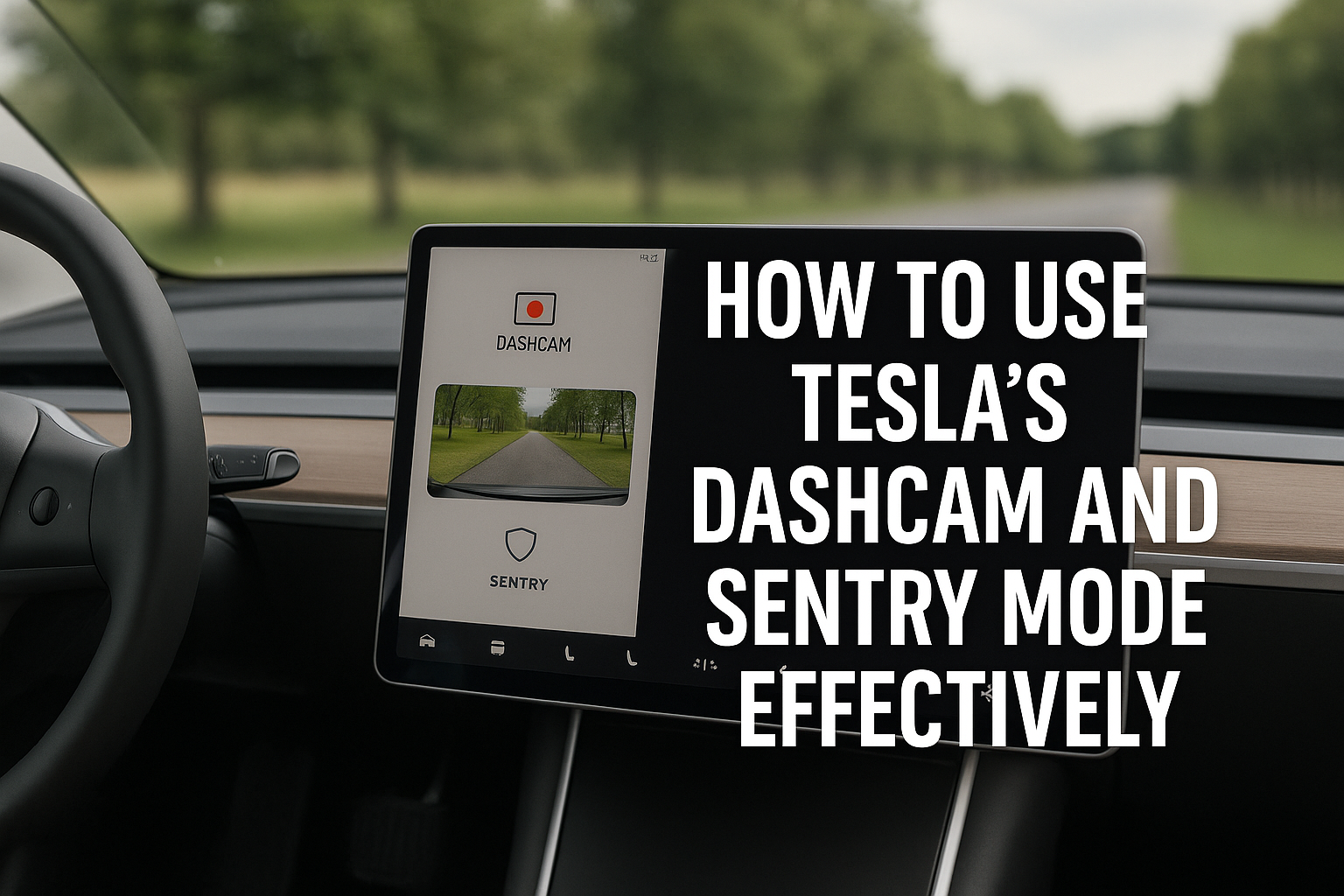
Tesla has revolutionized the driving experience with more than just electric performance. Among its most powerful innovations are Dashcam and Sentry Mode — built-in security and recording tools that not only provide peace of mind but also help protect drivers from accidents, theft, and vandalism.
If you own a Tesla, learning how to set up, optimize, and use these features effectively is essential. In this guide, we’ll break down everything you need to know about Tesla Dashcam and Sentry Mode, plus provide practical tips for making the most of them in 2025.
🚗 What is Tesla’s Dashcam?
Tesla’s Dashcam is a built-in video recording feature that uses the car’s Autopilot cameras to capture footage while driving. Unlike traditional dashcams that require third-party installation, Tesla integrates this function directly into the car’s system.
Key Benefits:
- Multiple Angles: Records from four cameras — front, rear, left, and right side repeaters.
- Automatic Recording: Begins recording when the car is in motion.
- Incident Capture: Saves clips automatically if an accident or collision is detected.
- Evidence Collection: Provides clear, timestamped video for insurance or law enforcement.
🔒 What is Tesla’s Sentry Mode?
Sentry Mode is a proactive security system that turns Tesla’s cameras into a 360° surveillance tool when the car is parked. Think of it as a home security system — but for your vehicle.
How It Works:
- Standby Mode: Car monitors for minimal threats like someone approaching.
- Alert Mode: If motion is detected, the screen displays a warning message.
- Alarm Mode: If a break-in or major threat occurs, Tesla activates alarms, brightens the screen, and saves all footage.
Why It Matters:
- Deter Theft: Flashing alerts and recording discourage criminals.
- Capture Vandalism: Records incidents like scratches, hit-and-runs, or attempted break-ins.
- Peace of Mind: Monitor your car remotely using the Tesla app.
🛠️ Setting Up Dashcam and Sentry Mode
Step 1: Get the Right USB Drive
Tesla requires a high-endurance USB drive or SSD with proper formatting.
- Recommended: Tesla’s official USB drive, or third-party options like Samsung T7 SSD or SanDisk High Endurance microSD with adapter.
- Format: exFAT for compatibility across devices.
Step 2: Create the TeslaCam Folder
- Insert your drive into a computer.
- Create a folder named TeslaCam in the root directory.
- Plug it into the front USB port of your Tesla.
Step 3: Enable Settings
- On your Tesla touchscreen, go to:
Controls > Safety > Dashcam and select Auto or Manual. - Toggle Sentry Mode:
Controls > Safety > Sentry Mode (you can exclude “Home,” “Work,” or “Favorites”).
🎥 Tips for Using Tesla Dashcam Effectively
- Keep Your USB Drive Clean: Regularly transfer and delete old footage so your drive doesn’t run out of space.
- Learn the Save Shortcut: Tap the Dashcam icon on your Tesla’s display to save the last 10 minutes of footage instantly.
- Check for Updates: Tesla often improves recording quality and Dashcam features with over-the-air updates.
- Review Footage Safely: You can view clips directly in your car or transfer them to your computer for archiving.
🛡️ Tips for Maximizing Sentry Mode
- Use Exclusions: If you don’t want Sentry Mode draining battery at home, exclude familiar locations like “Home” and “Work.”
- Pair with Tesla App: Get instant alerts if suspicious activity occurs, including live camera views (Premium Connectivity required).
- Be Aware of Battery Drain: Sentry Mode uses about 1 mile of range per hour. Consider using it selectively.
- Angle Advantage: Sentry Mode covers nearly every angle — but parking near good lighting can improve footage quality.
📱 Viewing and Managing Footage
Tesla makes it easy to manage Dashcam and Sentry recordings:
- In-Car Viewer: Tap the Dashcam icon → Launch Viewer.
- Tesla App (with Premium Connectivity): Access live feeds remotely.
- Transfer to Computer: Use a card reader or USB to manage files.
Pro Tip: Use Dashcam Viewer software (like TeslaCam Video WebApp Player) to organize and review clips easily.
⚖️ Legal Considerations
Before relying heavily on Dashcam and Sentry recordings, be aware of local laws:
- Recording Laws: Some states have restrictions on recording audio without consent. Tesla cameras typically capture video only.
- Evidence in Court: Tesla footage is often admissible but check local rules.
- Privacy: Avoid publishing footage online without blurring faces or plates.
🔑 Why Dashcam and Sentry Mode Are Must-Have Features
Owning a Tesla means having access to built-in security and driving assistance that most other vehicles require aftermarket solutions for. These features:
- Reduce insurance claims disputes
- Protect your Tesla investment
- Deter criminals
- Give drivers peace of mind
When used correctly, Tesla’s Dashcam and Sentry Mode provide unmatched safety, security, and convenience — turning your EV into not just a car, but a guardian on wheels.
📌 Final Thoughts
In 2025, car break-ins and insurance scams remain a reality. Luckily, Tesla equips its owners with advanced tools to stay ahead. By learning how to set up, manage, and optimize Dashcam and Sentry Mode, you’ll protect your Tesla, your passengers, and your investment.
👉 Pro Tip: Pair these features with Tesla accessories like high-endurance USB drives, portable SSDs, and charhttps://amzn.to/4fDYMWxging hubs available on Amazon to maximize reliability.